Ask IA about a problem action
Attention
This action will be available when the Realm has the Observability Section enabled and there is an anomaly analysis configuration in place for the metrics of the selected host or service.
The Ask IA about a problem action allows you to request an Artificial Intelligence (AI)-assisted diagnosis of a monitored host, service or issue, using the WOCU-Monitoring AI Assistant.
Its aim is to make it easier to understand an incident by analysing the status of the selected element and the operational information available in WOCU-Monitoring and Elastic Observability.
What is it for?
In the event of an incident, this action provides an automatic interpretation of the status of the monitored element, helping the operator to understand what is happening, identify possible causes and determine the next steps for diagnosis.
The analysis uses contextual information such as the status of the host or service, the last check run, the plugin’s output, the business impact and the observability data available in Elastic.
Unlike the RCA Action—which is designed to correlate events and information from different sources in order to investigate the cause of an incident—Ask IA about a problem focuses on providing an explanation and recommendations regarding the specific problem selected.
For example, when a service is in CRITICAL status due to high CPU usage, the action may explain the detected status, interpret the information returned by the check, and recommend further checks to investigate the problem.
How do you use it?
This option is available in the lists for Hosts, Services and Problems, within the menu of actions applicable to each item.
To run an analysis:
Locate the host, service or issue you wish to analyse and select the Ask IA about a problem option from the actions menu.
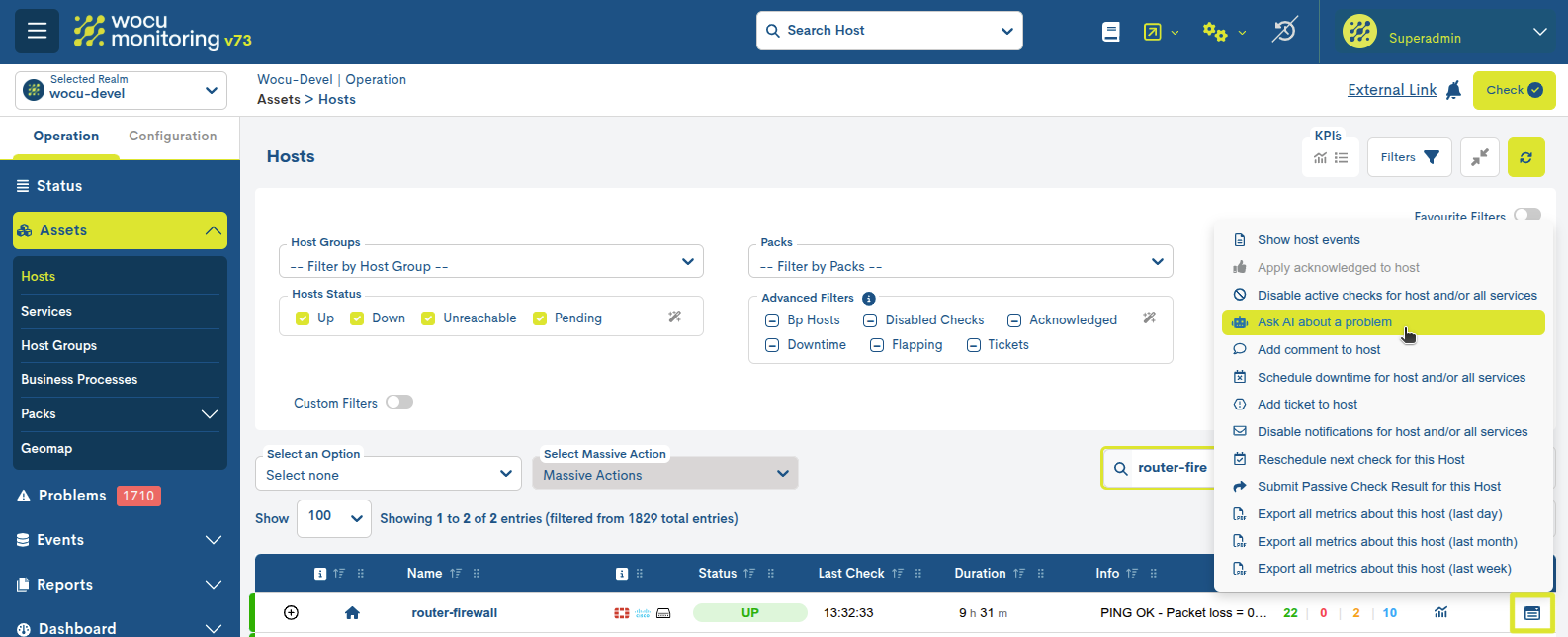
WOCU-Monitoring will use the available operational and observability data to generate a contextual diagnosis of the selected element.
Once the analysis has been generated, a diagnostic window will appear showing the results provided by the AI Assistant.
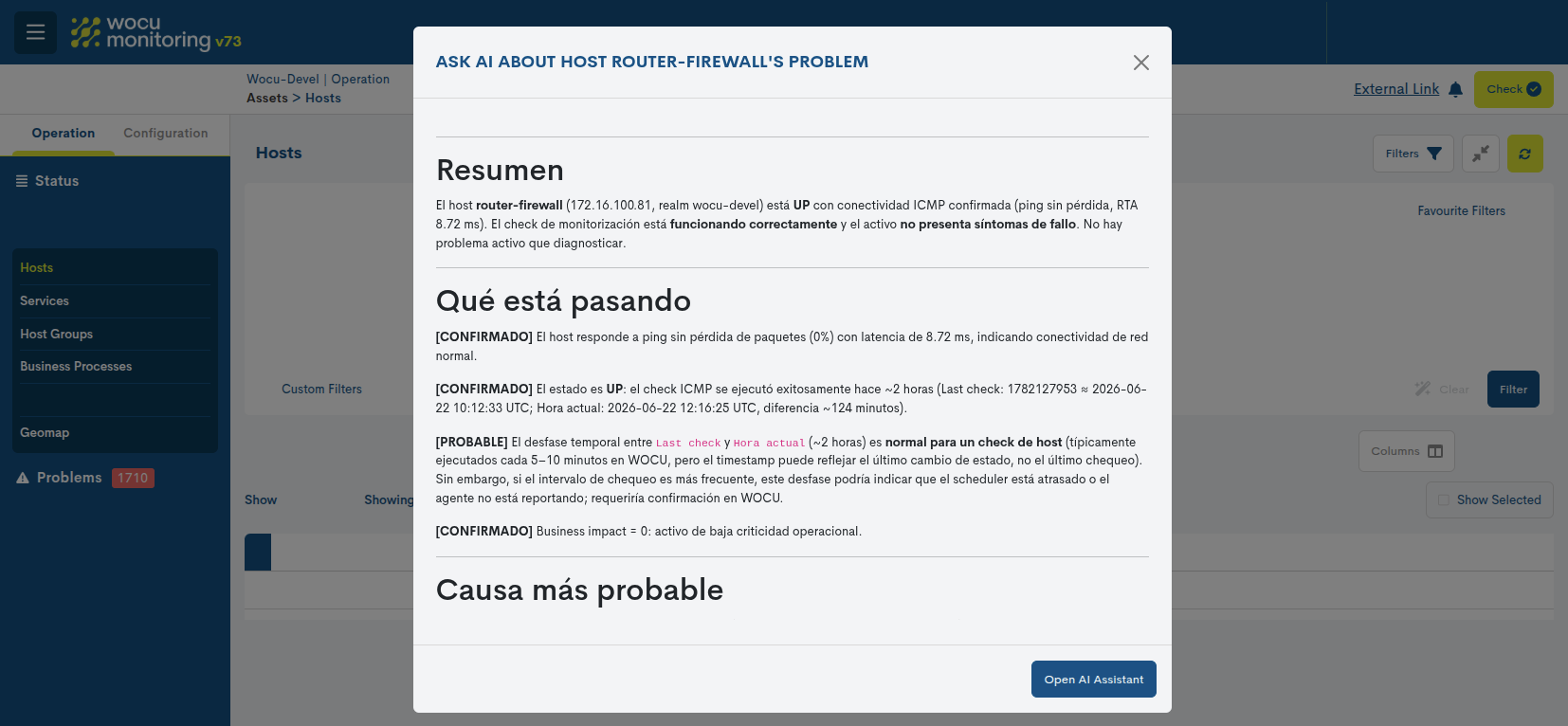
The diagnosis may include:
Resumen del estado actual: descripción general de la situación del elemento monitorizado.
What’s happening?: an explanation of the behaviour or problem detected.
Probable cause: an interpretation of the possible reasons for the incident.
Diagnostic information: relevant data and recommended commands for carrying out further checks.
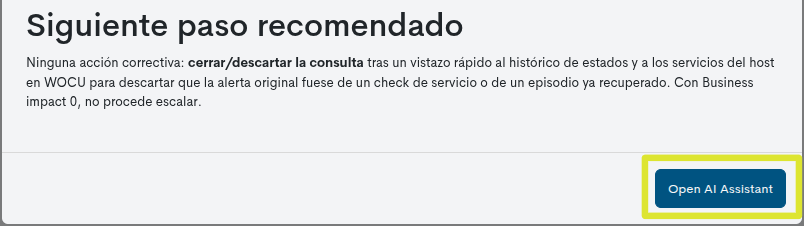
Recommended next step: a proposal for further action to continue the research.
The result should be used to support the diagnosis, enabling the operator to interpret the available information and guide the checks required to confirm the cause of the incident.
Continue your research with the AI Assistant
From the results window, you can select Open AI Assistant to continue the analysis by having a conversation with the WOCU-Monitoring AI Assistant.
When this option is selected, the user is taken to the Observability > AI Assistant view, where the context of the diagnosis carried out is loaded.
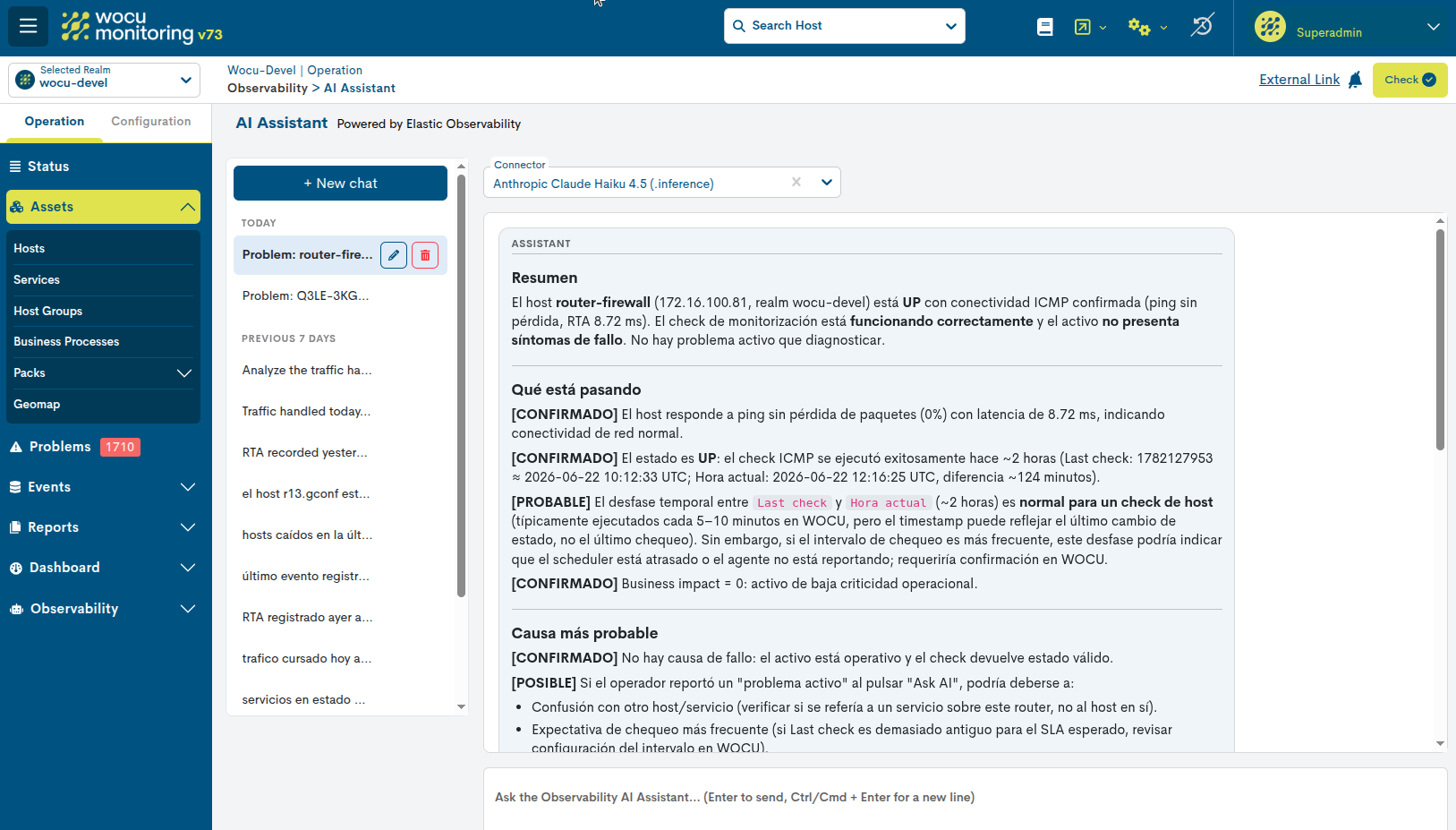
Following this conversation, the operator may ask further questions, seek clarification on the diagnosis, explore possible causes in greater depth, or request recommendations on how to proceed with the investigation.
Considerations and limitations
The Ask IA about a problem feature requires the Realm to have a Elasticsearch backend and the Observability Section correctly configured.
This action does not alter the status of the monitored elements or make any changes to the infrastructure. Its sole purpose is to facilitate the diagnosis and interpretation of incidents.