MQTT Thresholds
Integration with MQTT enables WOCU-Monitoring to incorporate passive device monitoring, specifically designed for IoT (Internet of Things) environments.
Unlike active monitoring mechanisms, where WOCU-Monitoring periodically queries the device, in this model it is the devices themselves that publish information to an MQTT broker. WOCU-Monitoring subsequently retrieves this data and incorporates it into the relevant Realm in the form of Passive Services. In this way, it is possible to integrate devices that send metrics or monitoring statuses via MQTT without the need for a specific monitoring pack.
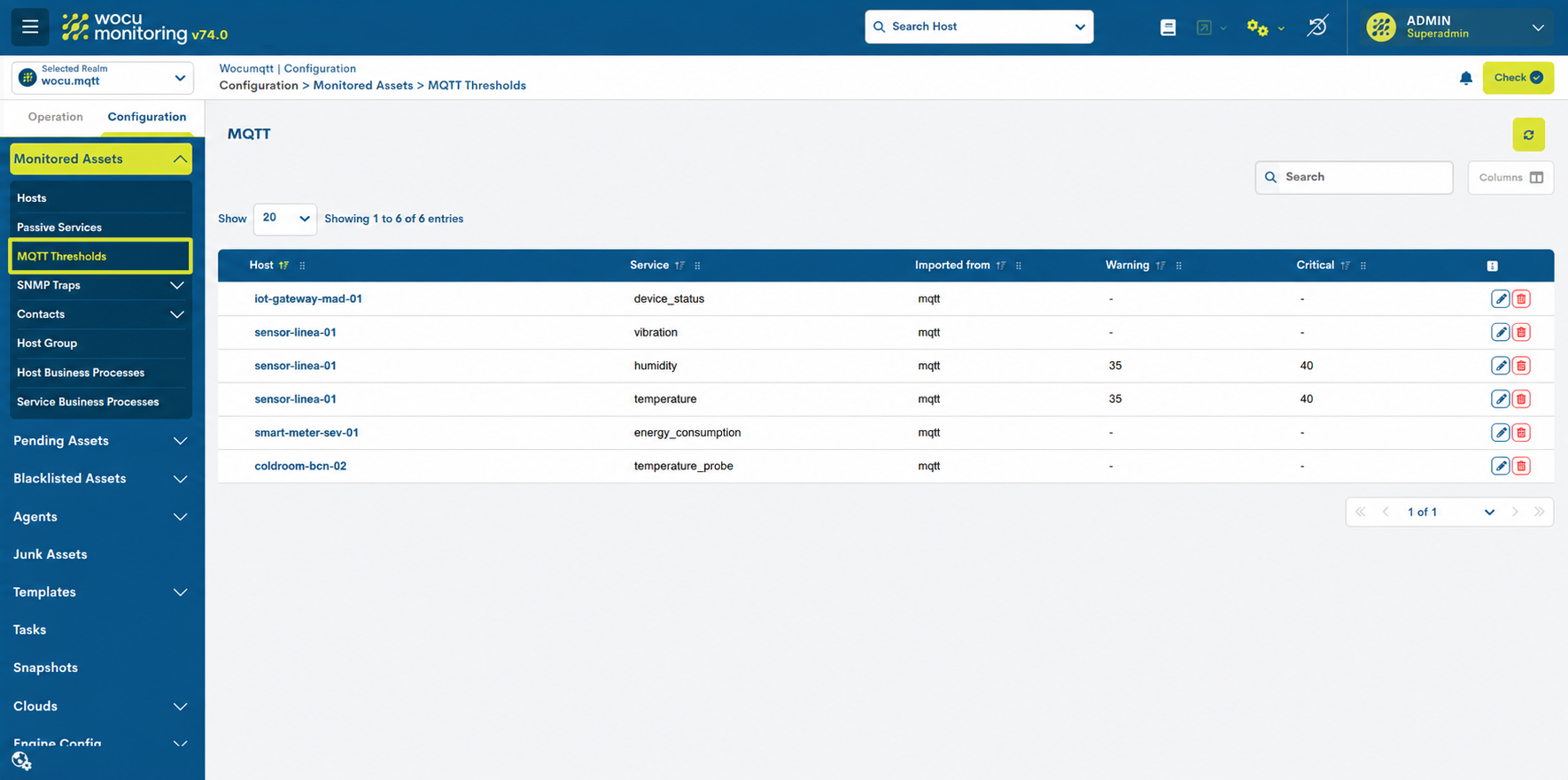
WOCU-Monitoring includes the MQTT Thresholds view, which brings together all the services automatically generated via the MQTT integration. Here, users can view existing services and configure their Warning and Critical thresholds individually; these thresholds will determine the service status based on the values received.
How it works
The general workflow is as follows:
Client devices publish information to the MQTT broker using the credentials configured for the realm.
Each message includes a site identifier (
MQTT Site ID), which makes it possible to determine which Realm the received information should be associated with.The WOCU-Monitoring MQTT service processes the messages and automatically routes them to the relevant Realm based on the
MQTT Site ID.WOCU-Monitoring processes the data received and automatically generates the necessary Hosts and/or Passive Services.
The new services are available for viewing from the Hosts Inventory and from the MQTT Thresholds view, where you can configure the thresholds for the Warning and Critical statuses (edit action).
Important
Services received via MQTT are automatically incorporated into WOCU-Monitoring, so there is no need to create them manually.
Reino MQTT Preconfiguration
The settings required to enable MQTT communication are configured via the WM Console Admin, within the Kingdom’s advanced settings.
It can be accessed from the Top Menu, via the Settings drop-down menu, by selecting the Configuration option.
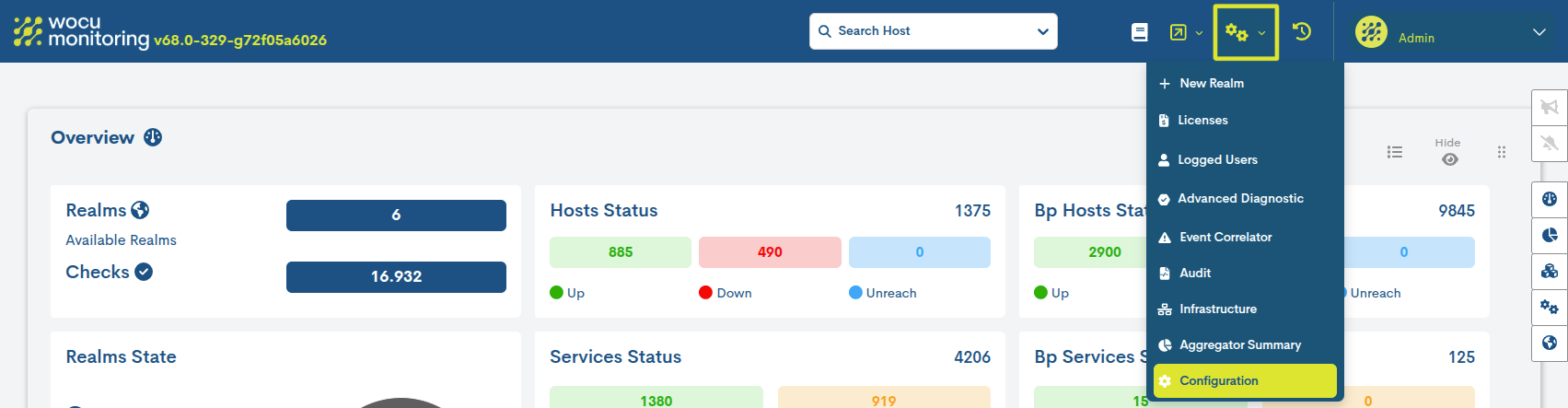
Once you’re in, go to:
Aggregator > Realms > within a specific realm, go to the MQTT configuration section.
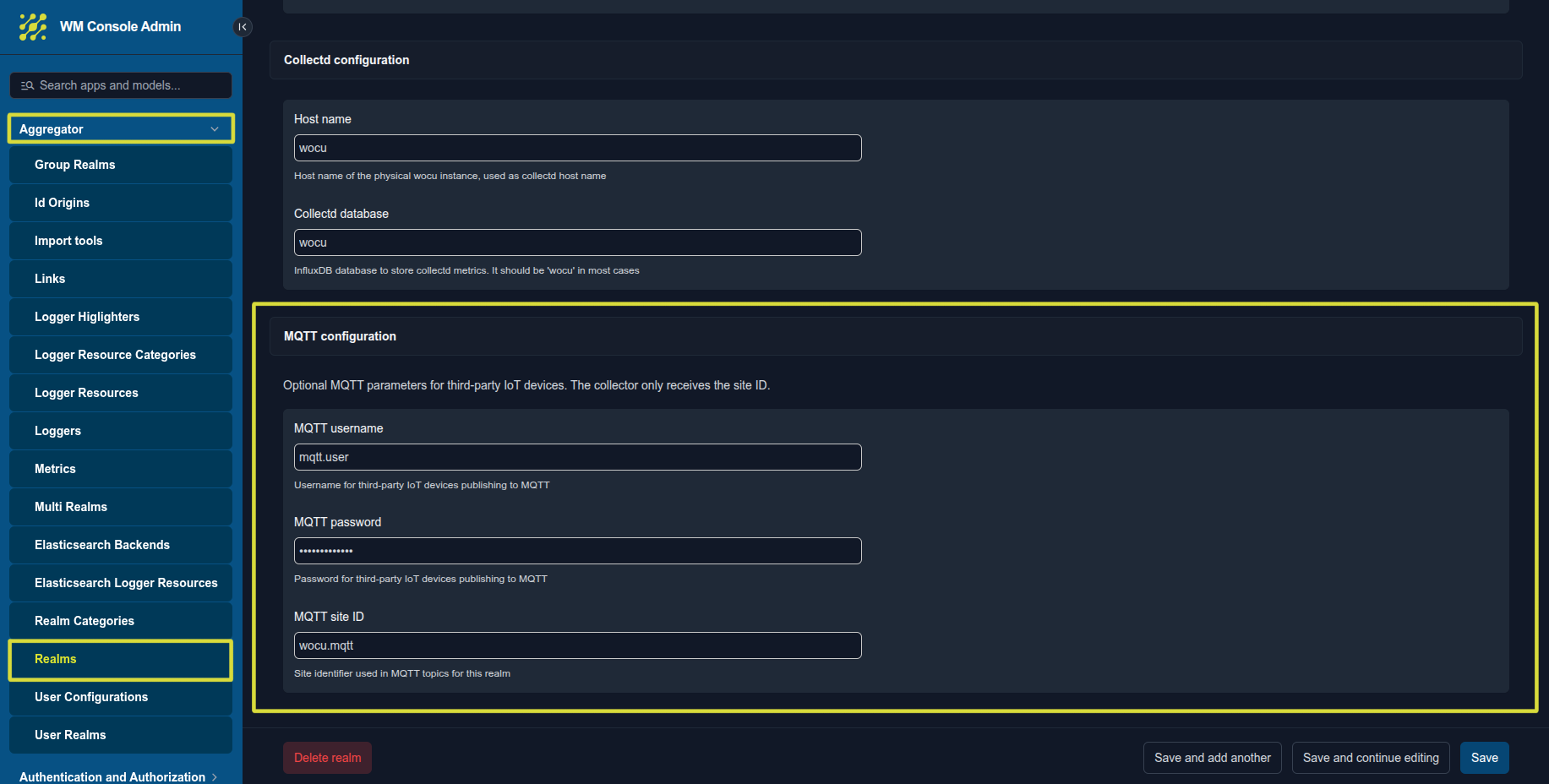
The MQTT configuration section includes the following parameters:
Field |
Description |
|---|---|
MQTT Username |
Username used to authenticate with the MQTT broker. This credential must be provided to the customer so that they can configure communication from their devices or systems. |
MQTT Password |
Password associated with the MQTT user. Together with the MQTT Username, it enables the client to authenticate with the broker. |
MQTT Site ID |
A unique identifier associated with the Realm. It must be included in the data sent to MQTT so that WOCU-Monitoring can determine which Realm to route the received data to. Incorrect configuration of this identifier may prevent the data from being routed to the intended Realm. |
Important
The MQTT Username and MQTT Password credentials must be provided to the customer so that they can configure their devices or systems and establish communication with the MQTT broker.
View MQTT Thresholds
Data received via MQTT is incorporated into WOCU-Monitoring in the form of Passive Services, which are created automatically and are associated with the corresponding host. As the information comes from external systems and may contain different types of metrics, these services do not necessarily have a monitoring pack that allows their status conditions to be defined in advance.
To manage these scenarios, WOCU-Monitoring includes the MQTT Thresholds view, which brings together all the services automatically generated via the MQTT integration.
From this view, the user can view the existing services and individually configure their Warning and Critical thresholds, which will determine the service status based on the values received.
The MQTT Thresholds view is available from:
Configuration > Monitored Assets > MQTT Thresholds
List of MQTT services
The main table contains the following fields:
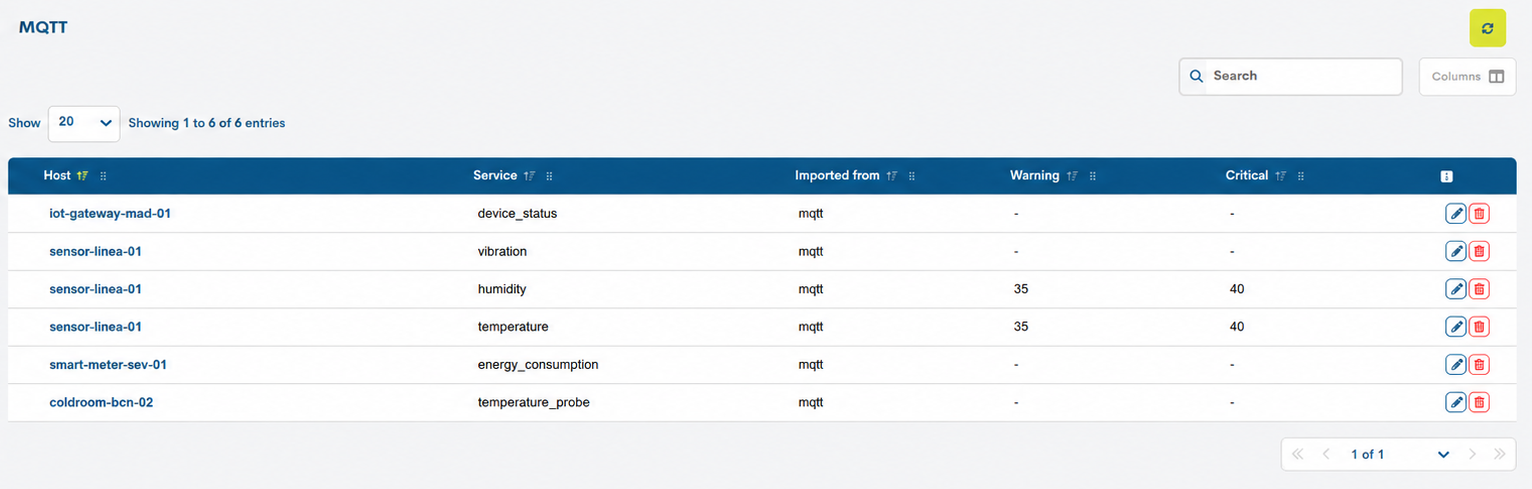
Host
Identify the device to which the passive service belongs.
Clicking on the name takes you to its details view, which displays the information relating to the threshold settings applied to the Passive Service associated with that device.
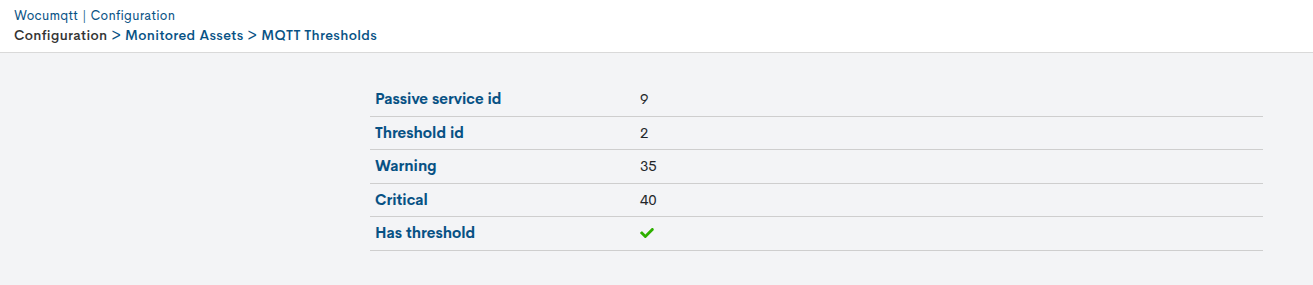
The view includes the following fields:
Passive service id: internal identifier for the Passive Service.
Threshold id: internal identifier for the associated threshold configuration.
Warning: value set as the Warning status threshold.
Critical: value set as the Critical status threshold.
Has threshold: indicates whether the service has an active threshold configuration. When available, this is shown by a tick icon.
Service
Displays the name of the Passive Service created from the information received via MQTT.
A single device may have several MQTT services, each associated with a different metric or piece of data.
Imported from
Indicates the source from which the service was integrated. For this integration, the value
mqttis displayed.
Warning
Shows the threshold above which the value received should be considered a Warning. If no threshold has been defined,
-is displayed.
Critical
Shows the threshold above which the received value should be considered to be in a Critical state. If no threshold has been defined,
-is displayed.
Actions: Deleting and Editing Service Thresholds
The last column in the table lists the actions available for each MQTT service. These are:
Editing service thresholds
Using the button with the pencil icon, you can modify the service thresholds from the Edit MQTT Threshold view, setting the values associated with the Warning and Critical states.
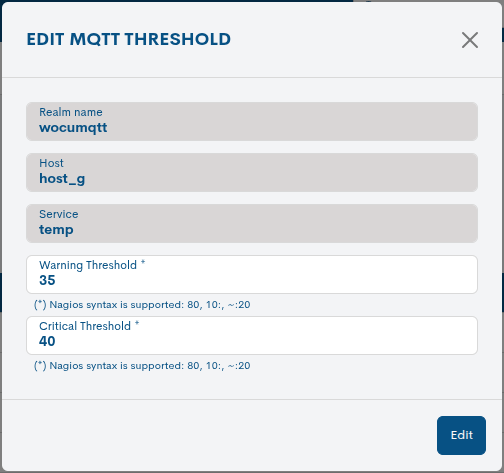
The configuration includes the following fields:
Realm name: The WOCU-Monitoring realm to which the MQTT Passive Service currently being edited belongs.
Hosts: The device to which the selected MQTT service belongs.
Service: The passive service to which the configuration will be applied.
Warning Threshold: An expression or value that determines when the service should switch to Warning status.
Critical Threshold: An expression or value that determines when the service should change to the Critical state.
Application of thresholds
The Warning and Critical thresholds are assessed against the values received by the Passive Service and support the range syntax used by Nagios.
For example, if
Warning Threshold: 40andCritical Threshold: 50are configured, values above40will trigger a Warning status, whilst those above50will trigger a Critical status.Once the settings have been saved, WOCU-Monitoring will apply these thresholds to any new values received and will automatically update the status of the Passive Service when the defined conditions are met.
The status change can be viewed via the usual monitoring views, such as Assets > Hosts, thereby integrating the MQTT services into the same status model as the other elements monitored by WOCU-Monitoring.

Deleting the service’s configured thresholds
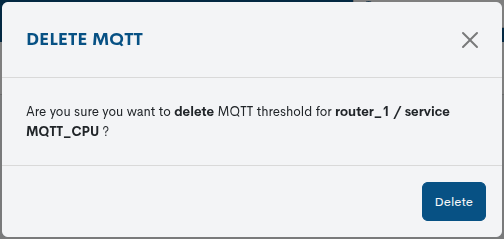
By clicking the button with the bin icon, you can delete the threshold settings associated with the service. To confirm this action, click the Delete button.